
How to Use the Google Search Console API to Automate Your SEO Reports
This article explains how the Google Search Console API turns raw Search Console data into automated, actionable SEO insights so you can stop wasting time on ma…


Introduction
Have you ever found yourself stuck staring at your Google Search Console dashboard, wondering how to turn all those rows of data into actual traffic improvements?

You’re not alone. Thousands of small business owners and marketers open Search Console every week, export reports, and then feel overwhelmed by the sheer volume of information staring back at them.
Here’s the reality check. A massive 97% of SEO professionals say they use Google Search Console according to recent industry research. Yet most of them still manually copy data into spreadsheets, spending hours each week on repetitive tasks that could be automated. That time adds up fast.
The Google Search Console API changes everything. Instead of logging in, clicking through menus, and exporting CSV files by hand, you can pull exactly the data you need directly into your reporting tools. The API gives you programmatic access to critical SEO data. Click impressions, average position, clickthrough rates. All of it available on demand, in real time, without the manual grunt work.
Why does this matter for your business right now in 2026? Consider this. Google’s top three organic search results receive 68.7% of all clicks. If your site ranks on page two or three, you are practically invisible. And get this. 46.08% of all clicks in Google Search Console go to hidden terms, meaning the actual queries driving traffic are often hidden inside aggregated data. Without the right tools, you are flying blind.
Manually digging through this data to find what works wastes hours every single week. Hours you could spend actually improving your content, fixing technical issues, or refining your strategy. The Google Search Console API automates the boring stuff so you can focus on making smart decisions that grow your traffic.
Small and mid-sized businesses especially feel this pain. You do not have a dedicated data analyst on staff. You are the marketing team, the sales team, and the operations team all rolled into one. Every minute spent wrestling with export files is a minute stolen from growing your business.
The good news is that connecting to the Google Search Console API is simpler than you might think. And once you do, you unlock a whole new level of insight into how people find your website. You can build automated reports that track keyword performance over time, spot sudden traffic drops before they become crises, and identify content opportunities your competitors are missing.
If you are serious about using data to drive your SEO strategy forward, mastering the Google Search Console API is one of the smartest investments you can make this year.
Ready to stop guessing and start growing? Get started with Weblish and let our team handle the technical heavy lifting while you focus on what matters. Grow Your Traffic on Autopilot with AI powered insights that turn your Search Console data into real, measurable results.
What Is the Google Search Console API?
Let’s get down to basics. The Google Search Console API is a tool that lets you pull data from your Search Console account automatically, without logging in and clicking through menus. Think of it as a direct pipeline from Google’s data to your favorite tools. Instead of exporting CSV files every week, you write a simple query and the data shows up right where you need it.
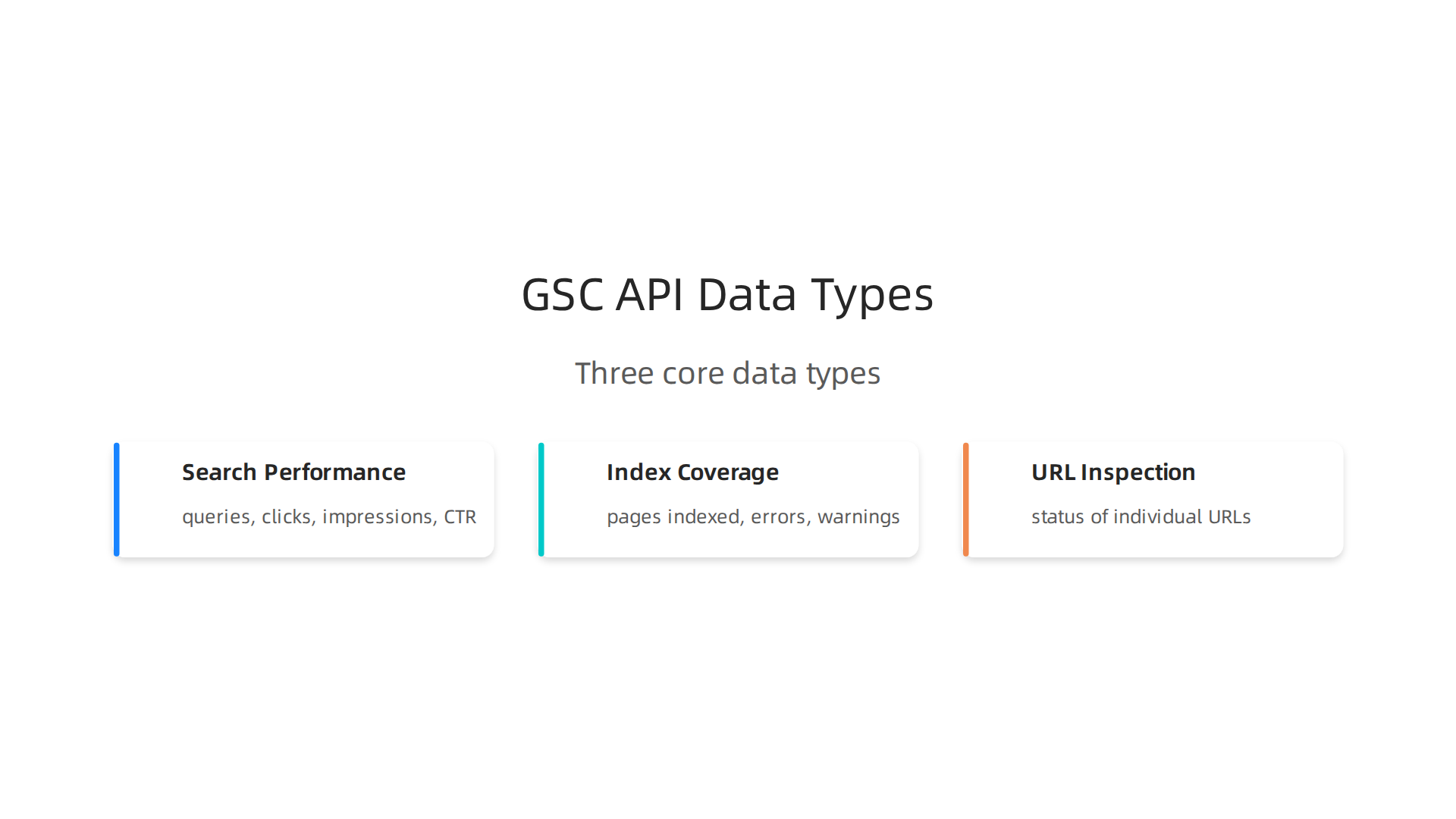
The official name for this tool is the Search Console API, and it gives you programmatic access to three main types of data:
-
Search performance data – queries, clicks, impressions, clickthrough rate, and average position. This is the most commonly used endpoint. You can ask for data by page, query, country, device, or date. The official Google documentation walks through how to use the
querymethod here. -
Index coverage data – which pages are indexed, which have errors, warnings, or are excluded. This helps you spot technical SEO issues fast.
-
URL inspection data – check the status of individual URLs as Google sees them. Great for debugging.
The API works through three core types of requests: Query, List, and Get. The Query endpoint returns aggregated performance data. The List endpoint returns lists of items like sitemaps or sites in your account. The Get endpoint retrieves details about a specific URL or resource.
A quick note on limits. You cannot pull more than 25,000 rows in a single query, and your daily quota is 50,000 requests. There is also a URL inspection quota. You can learn more about these limits and common fixes in this detailed guide here. And good news: Google now includes 16 months (486 days) of search performance data through the API, as reported by Lumar here.
So why does this matter to you? Instead of spending hours each week copying data into spreadsheets, you can connect the API to Google Sheets using add-ons like the API Connector. That saves you tons of time and lets you build automated reports. If you feel like you need an expert to help you set these systems up and interpret the data, consider hiring an SEO consultant who can take the guesswork out of your strategy.
The bottom line: the Google Search Console API turns raw data into actionable insights without the manual work. You get cleaner data, faster reporting, and more time to focus on growing your traffic.
Ready to skip the manual grind and let automation do the heavy lifting? Grow Your Traffic on Autopilot with Weblish’s AI driven approach that turns your Search Console data into real results.
Key Data Points You Can Extract via the API
So now that you know the API connects you directly to Google’s data, what exactly can you pull out of it?
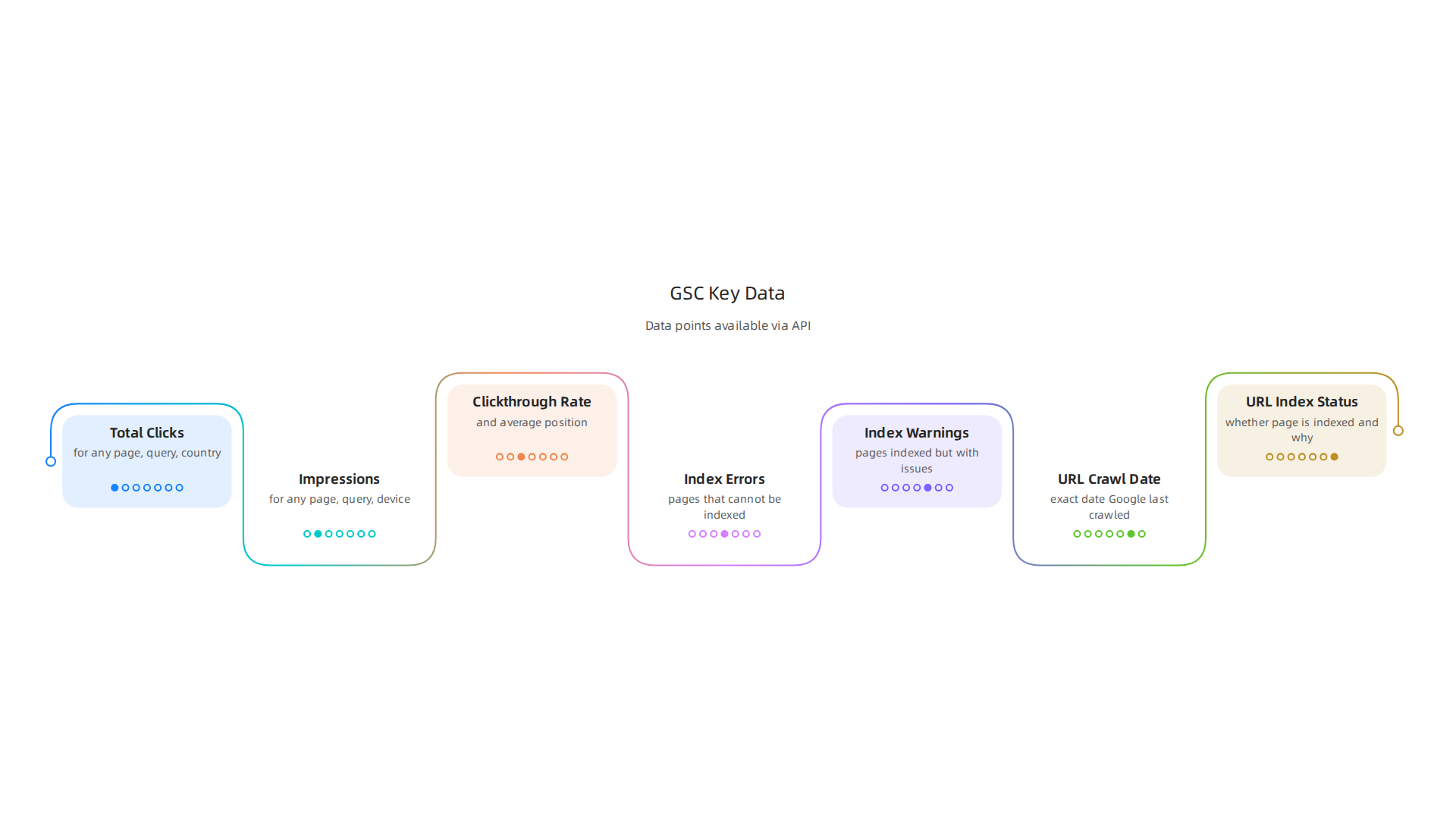
The answer is a lot of useful information that can help you make smarter decisions. Let’s break it down into three main buckets.
1. Performance Data (The Most Popular)
This is the gold mine for most users. You can pull:
- Total clicks and impressions for any page, query, country, or device.
- Clickthrough rate (CTR) and average position.
Why does this matter? Well, consider this: Google’s top three organic search results receive 68.7% of all clicks, as reported by AIOSEO here. If your pages sit at position 5, you know exactly why you are not getting traffic.
With the API, you can filter this data in powerful ways. For example, you can identify pages that get a lot of impressions but very few clicks. That is a clear sign your title tag or meta description needs work. The official Google documentation shows you how to use the query method to pull this data right here.
Pair this with a strong strategy. A great way to boost those clicks is by running ads alongside your organic efforts. Check out this guide on Google Search Ads for Small Business to get more leads fast.
2. Index Coverage Data (Catch Problems Early)
Your site might have pages that Google simply cannot find or chooses not to index. The API lets you pull a complete list of:
- Errors (pages that cannot be indexed at all).
- Warnings (pages indexed but with issues).
- Excluded pages (pages Google chose not to index).
- Valid pages (pages that are successfully indexed).
This is critical. In fact, 28% of marketers say technical debt is the biggest risk to their SEO success, according to WordStream here. Spotting a spike in "Not Found" (404) errors early can save you from losing rankings.
You can automate these checks through the API so you get alerts before small issues become big problems. Need help understanding what all these errors mean? Consider working with an SEO consultant who can turn technical jargon into a clear action plan.
3. URL Inspection Data (Debug Individual Pages)
Sometimes you just need to check one specific URL. The API’s URL Inspection endpoint gives you the same information you see in the Search Console inspection tool. You can see:
- The exact date Google last crawled the page.
- Whether the page is indexed and why.
- Any specific errors or enhancements Google detected.
This is perfect for running quick quality checks on new blog posts or landing pages. And the best part? You can automate these checks for hundreds of URLs at once. A popular method is pulling this data directly into Google Sheets using a tool like the API Connector, as described by Mixed Analytics here.
Putting It All Together
Here is the thing. Knowing which data points exist is not the same as knowing how to use them. A common blind spot is hidden terms. Ahrefs found that 46.08% of clicks in Google Search Console go to hidden terms here. That means almost half of your traffic comes from queries you cannot see in the standard reports.
The API helps you uncover these gaps. You can pull deeper query data, spot trends faster, and build reports that actually tell a story. But collecting data is only half the battle. The real win comes when you act on it.
Pulling data is step one. Acting on it is where most businesses get stuck. If you find yourself swimming in data but moving slow on execution, you might benefit from a service that automates the whole process. Grow Your Traffic on Autopilot with Weblish’s AI driven approach that turns your Search Console data into real results.
How to Authenticate and Set Up the API
Getting your data from the Google Search Console API is awesome. But first, you have to prove you’re allowed to access it. That’s where authentication comes in. Think of it like showing your ID at the door.
Google uses something called OAuth 2.0 to keep things secure. It’s the same system you use when you log into a website with your Google account. The official OAuth 2.0 guide from Google explains the whole flow. But don’t worry, you don’t need to be a security expert to set it up.
Here’s a simple step-by-step to get your google search console API credentials ready.
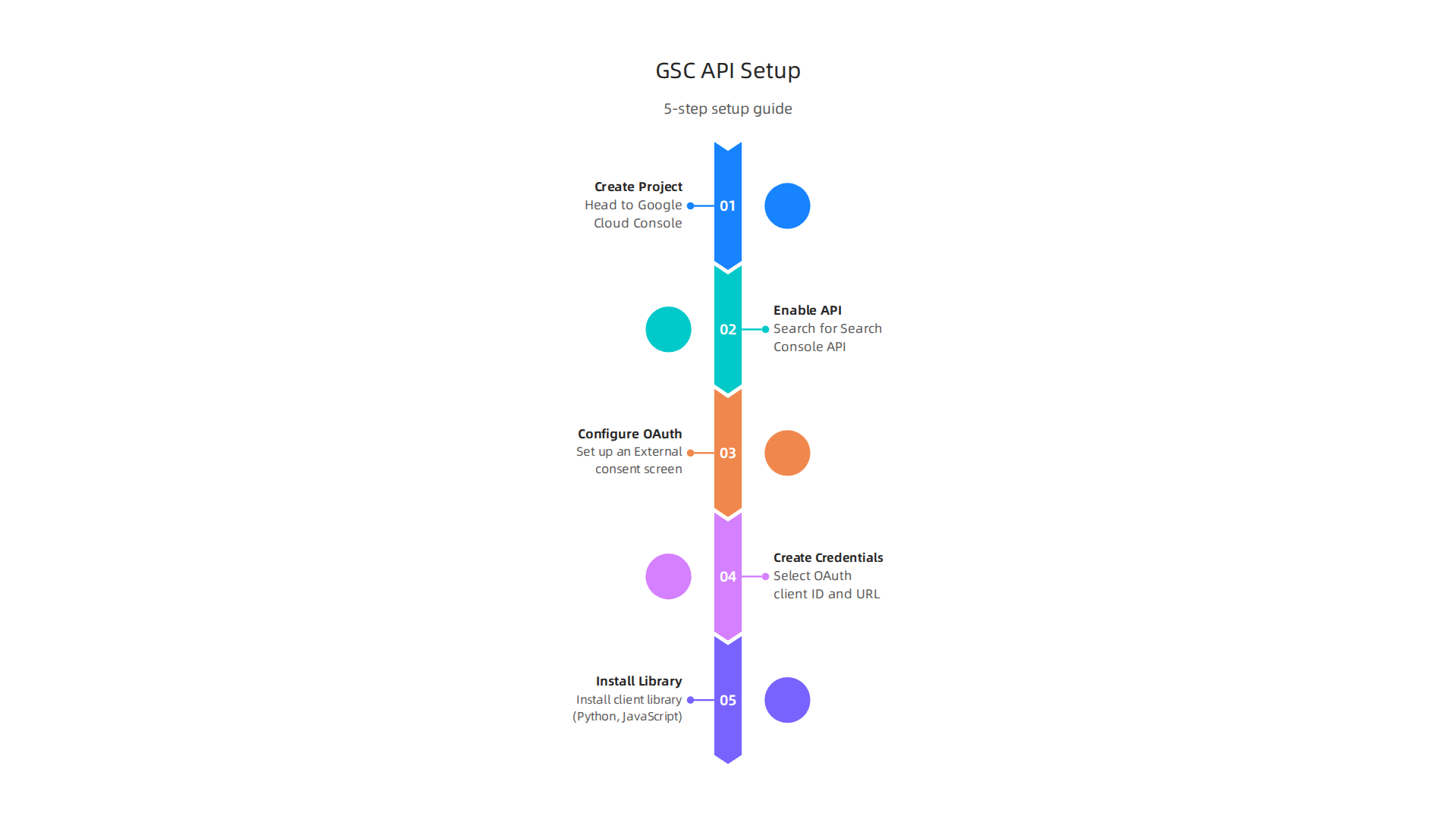
Step 1: Create a Google Cloud Project
Head over to the Google Cloud Console. If you don’t have a project yet, create a new one. Name it something like "Search Console API Project."
Step 2: Enable the API
Inside your project, go to the "APIs & Services" library. Search for "Google Search Console API" and enable it. This tells Google you want permission to talk to that service.
Step 3: Configure the OAuth Consent Screen
This is the screen users see when they’re asked to grant access. You’ll need to set up an "External" or "Internal" consent screen. For most small businesses, "External" is the right choice. Follow the prompts to add your app name and contact email.
Step 4: Create Credentials
Now the important part. Go to "Credentials" under APIs & Services. Click "Create Credentials" and select "OAuth client ID." You’ll be asked to choose an application type (like "Web application"). Give it a name, and add your website URL under "Authorized redirect URIs."
Google’s help page walks you through creating an OAuth client ID in detail.
After you save, you’ll get a client ID and client secret. Keep these safe. They’re like the keys to your data.
Step 5: Install a Client Library (Optional but Easy)
Instead of making raw HTTP requests, you can use a client library. Google offers libraries for Python, JavaScript, Java, and more. For example, the Python library (google-api-python-client) makes it easy to request data with just a few lines of code.
Common Pitfalls to Avoid
Even smart people trip up here. Watch out for these:
- Wrong scopes. When you request access, you must use the correct scope URL:
https://www.googleapis.com/auth/webmasters.readonly. Using the wrong one will give you errors. - Quota limits. Google gives you a certain number of requests per day. Keep an eye on your usage or you’ll get locked out.
- Token refresh. Access tokens expire after an hour. Your code needs to automatically refresh them using the refresh token you get during setup.
If all this sounds a bit technical, you’re not alone. Many business owners find API setup confusing.

That’s exactly why services like Weblish exist. They handle the heavy lifting so you can focus on growing your traffic. For a more hands-off approach, check out Weblish’s done-for-you growth service that integrates directly with your Search Console data.
Once authentication is done, you’re ready to start pulling performance data, index coverage, and more. The hardest part is behind you.
Automating SEO Reports with the API
Now that your Google Search Console API is set up, let’s talk about the best part: automation. Manually logging in, downloading reports, and stitching them together gets old fast. Especially when you have better things to do, like actually growing your business.
The google search console api lets you schedule those data pulls so you never miss a beat. Think of it as having a robot assistant who emails you your SEO report every morning.
Common Automation Triggers
You don’t need to automate everything. Just the stuff that matters most. Here are three triggers that work well for most businesses:
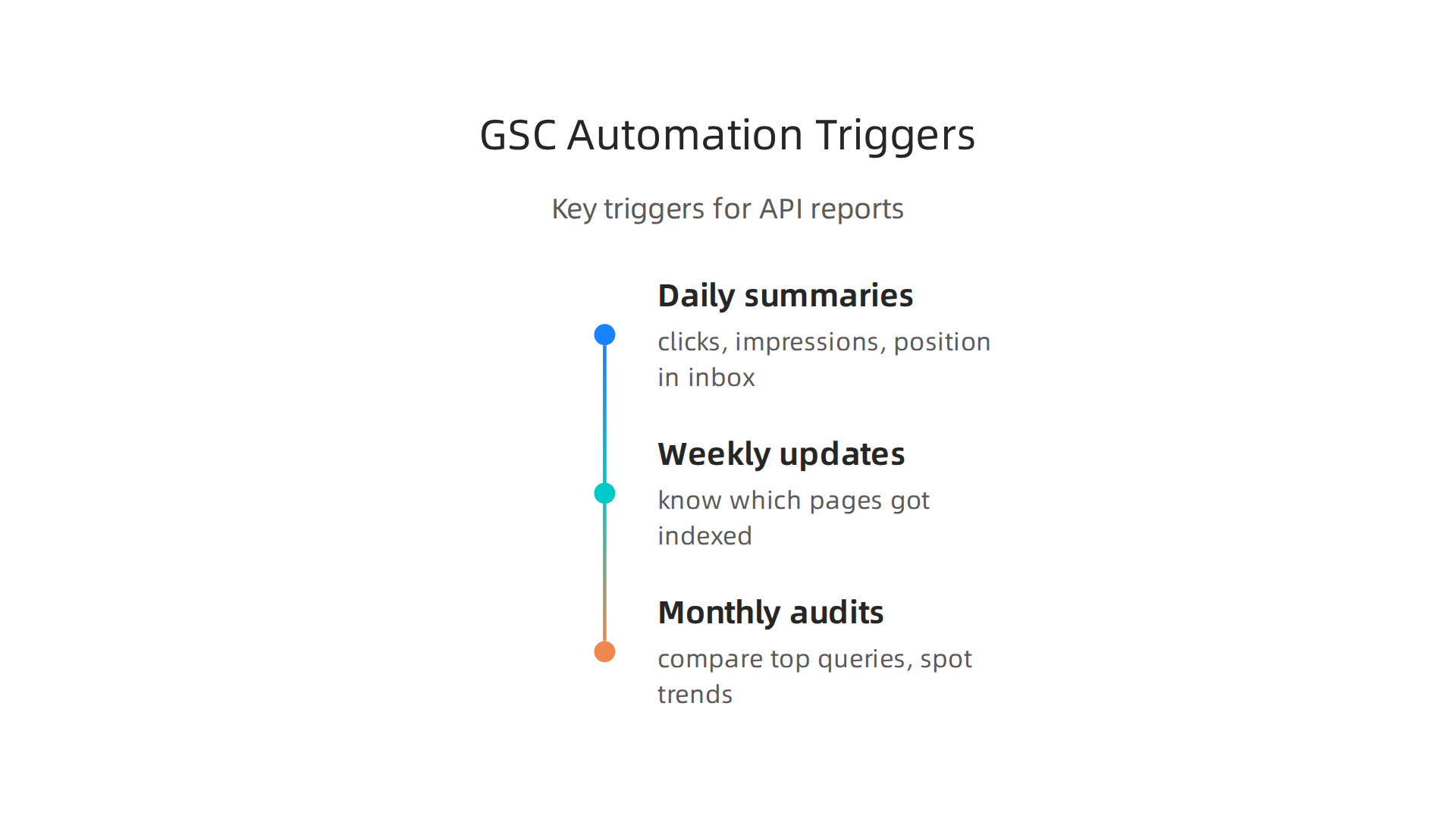
- Daily performance summaries – Get clicks, impressions, and average position in your inbox each morning.
- Weekly coverage updates – Know which pages got indexed (or lost) so you can fix errors fast.
- Monthly SEO audits – Compare this month’s top queries to last month’s and spot trends early.
Where to Send the Data
You have plenty of options. You can push data into Google Sheets for simple tracking. Or send it to Looker Studio for a full dashboard. For example, the official Looker Studio connector for Search Console lets you build visual reports without writing code.
If you prefer custom apps, you can pipe data directly into your own database or alert system.
A Quick Python Example
Here’s a simple script using the google-api-python-client library. It pulls your top 10 queries from the last 7 days and saves them to a CSV.
from google.oauth2 import service_account
from googleapiclient.discovery import build

# Authenticate using your credentials
credentials = service_account.Credentials.from_service_account_file(
    'path/to/your/key.json',
    scopes=['https://www.googleapis.com/auth/webmasters.readonly']
)

service = build('webmasters', 'v3', credentials=credentials)

# Define your site URL and request
site_url = 'https://www.yoursite.com'
request = {
    'startDate': '2026-06-01',
    'endDate': '2026-06-07',
    'dimensions': ['query'],
    'rowLimit': 10
}

response = service.searchanalytics().query(siteUrl=site_url, body=request).execute()

# Save to CSV
import csv
with open('top_queries.csv', 'w', newline='') as f:
    writer = csv.writer(f)
    writer.writerow(['Query', 'Clicks', 'Impressions'])
    for row in response['rows']:
        writer.writerow([row['keys'][0], row['clicks'], row['impressions']])
Then you can set up a cron job or a scheduled task in the cloud to run this daily and email you the file.
Want a no-code approach? Tools like Supermetrics can send Search Console data straight to Looker Studio or Sheets with a few clicks. It’s perfect if you don’t want to touch Python.
Why Automate?
Automation gives you time back. Instead of spending 30 minutes every Monday pulling reports, you can focus on what the data is telling you. That’s where real growth happens.
If all this sounds like work you’d rather skip, that’s okay. Weblish offers a done-for-you growth service that connects to your Search Console data and handles reporting for you. You get the insights without the headache.
Grow Your Traffic on Autopilot – Let Weblish manage your SEO reports and more so you can focus on your business.
Integrating GSC API with Google Sheets and Looker Studio
So you’ve got the API pulling data. Now the real question: where does it all live? You could read raw CSV files, but that gets messy fast. The two most popular homes for your google search console api data are Google Sheets and Looker Studio. Both are free or low cost, and they make your numbers actually useful.
Google Sheets: Your Simple Data Hub
Google Sheets is perfect for quick reports and sharing with your team. You have two ways to get data in.
Option 1: Google Apps Script – This is like writing a mini program inside your Sheet. You can call the google search console api directly and dump the results into cells. There’s a good step-by-step guide on the Google support forum that walks you through the setup. It takes a bit of code, but once it’s running, it updates automatically.
Option 2: Third-party connectors – If coding isn’t your thing, tools like Supermetrics can send Search Console data straight to Sheets with a few clicks. You just pick your metrics and hit run. No scripts, no hassle.
Either way, you end up with a live table of queries, clicks, impressions, and average position. You can then build pivot tables or charts inside Sheets. It’s a great way to keep your SEO metrics in the same place as your budget spreadsheets.
Looker Studio: Dashboards That Actually Pop
Looker Studio (formerly Data Studio) turns your data into interactive dashboards. You can connect the google search console api using the official connector built right into the platform. No extra tools needed.
You just add Search Console as a data source, choose your site, and pick the metrics you want. Then you drag and drop charts, scorecards, and tables onto a canvas. The Google Cloud docs have a full walkthrough on how to set this up.
You can also blend data from multiple sources. For example, you might combine Search Console data with Google Analytics or your own Google Sheets. A developer forum thread shows how to dynamically blend Sheets and Search Console data based on date ranges. This lets you see correlations between search performance and on-site behavior.
Best Practices for Your Dashboards
Here are a few tips to keep your reports clean and useful:
- Use a date range control so you can switch between last 7 days, 28 days, or custom periods.
- Start with a scorecard showing total clicks and impressions. That’s your quick health check.
- Add a time series chart to see trends over the last month. Spikes and drops jump out immediately.
- Include a table of top queries with clicks and impressions sorted by volume. This is where you spot opportunities.
- Group by page if you want to see which URLs are driving the most traffic.
When your data is organized this way, you can spot a sudden dip in clicks for your best pages and take action fast. It beats digging through a CSV any day.
Of course, setting all this up takes time. If you’d rather focus on running your business, Weblish can handle the whole pipeline for you. You get the insights without the work. And if you’re thinking about refining your strategy, you might also want to read about why your small business needs an SEO consultant in 2026 for expert guidance on what to do with all that data.
Grow Your Traffic on Autopilot – Let Weblish manage your SEO reports and more so you can focus on your business.
Best Practices and Common Pitfalls
You’ve built your dashboard. Data is flowing. But here’s the thing: the google search console api can bite you if you’re not careful. A few simple mistakes can break your automation or get you temporarily blocked. Let’s cover the most common pitfalls and how to avoid them.
Watch Your Daily Quota
The google search console api gives you 200,000 requests per day for most sites. That sounds like a lot. But if you schedule multiple reports for every property and date range, you can burn through it fast.
Track your usage in the Google Cloud Console. Set up alerts when you hit 80 percent. If you need more, apply for a higher quota. But first, check if you can consolidate requests. For example, instead of separate requests for each day, ask for a date range. You’ll use one request instead of seven.
Plan for Data Freshness
GSC data is not real time. It can be delayed by up to two days. So if you run a report at 9 AM on Tuesday, the numbers might only cover through Sunday.
This matters when you build automated reports. Don’t panic if today’s data looks low. Build a note into your dashboard: "Data may be up to 48 hours behind." That simple label saves you from false alarms.
Use Exponential Backoff for Errors
When the API throws an error, don’t keep hammering it with new requests. Google will block you for a while. Instead, use exponential backoff. Wait a few seconds, then retry. If it fails again, double the wait time. This pattern is standard for all Google APIs. The YouTube video "Working with the Search Console API" explains this approach in detail.
If you skip this step, you risk getting your access suspended. That means zero data until you appeal. Not fun.
Respect Rate Limits Even for Small Requests
Even one request per second can trigger limits if your app is noisy. Spread your calls out. Add a small delay between each query. Think of it like a friendly conversation, not a firehose.
Watch for Hidden Terms and Zero Clicks
Here’s a stat that might surprise you: 46.08% of clicks in Google Search Console go to hidden terms. That means almost half your data is anonymized. You can’t optimize what you can’t see. Also, 60% of Google searches ended with zero clicks in 2025. So impressions without clicks are normal for many queries.
Don’t obsess over every hidden term. Focus on the queries you can see and improve those pages. If you need deeper insights, consider using Google Search Console’s branded queries feature, which was updated in 2026 to give more clarity.
Keep Your Automation Simple
Overly complex scripts break often. Start with a basic loop that fetches data for the last 28 days. Add error handling. Test it. Then add more features. If you go big from day one, you’ll spend more time debugging than analyzing.
When in Doubt, Let the Experts Handle It
Setting up all this monitoring and automation takes real effort. If you’d rather skip the tech headache, Weblish can manage your entire SEO pipeline.

You get clean reports without touching a single API call. And if you’re thinking long-term, a local SEO company can take your strategy further by focusing on geographic visibility.
Ready to stop wrestling with APIs? Let Weblish take over your site growth.
Grow Your Traffic on Autopilot – Connect your website with Weblish and let AI and experts drive your leads while you run your business.
Summary
This article explains how the Google Search Console API turns raw Search Console data into automated, actionable SEO insights so you can stop wasting time on manual exports. It covers what the API provides — performance, index coverage, and URL inspection data — and shows practical ways to use those signals to find low-CTR pages, catch indexing problems, and debug individual URLs. You’ll learn how to authenticate with OAuth 2.0, common setup steps, and simple automation examples (including a Python snippet) to schedule daily, weekly, or monthly pulls. The guide also explains how to push data into Google Sheets or Looker Studio for reporting, lists best practices for dashboards, and highlights quota and error-handling traps to avoid. Readers will finish knowing which API endpoints to call, how to wire the data into tools they already use, and when it makes sense to bring in a consultant or no-code connector to save time.